The menu is the primary point of interaction for the user. It's used to:
- Display the configurator options - such as the choices for exterior wall colors.
- Play animations - such as moving the camera and hiding the roof.
- and more.
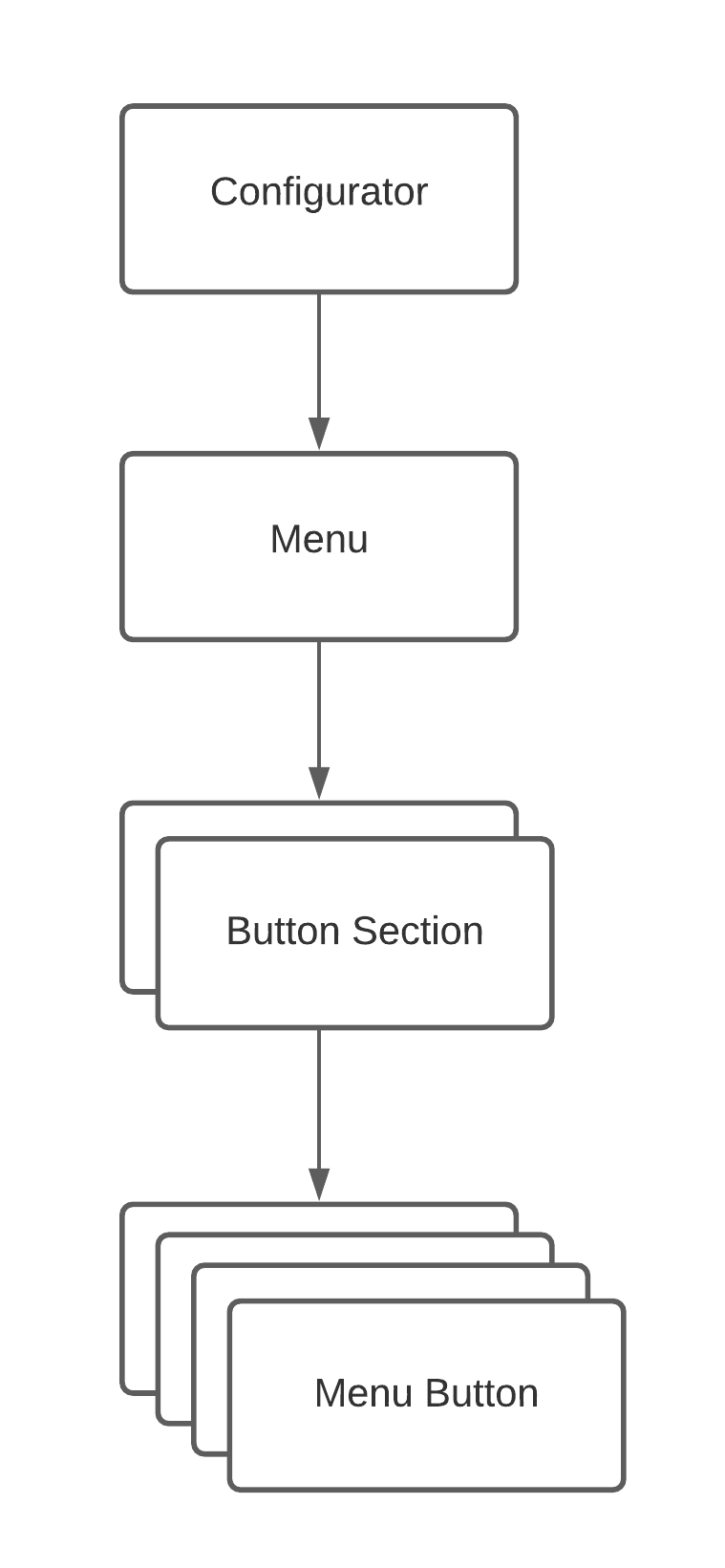
The menu exists within a Configurator, and contains Button sections and Menu buttons.
¶ Display styles
The menu is displayed differently depending on what Layout the Configurator uses, but the editing area always works the same way.
¶ Editing a Menu
The menu can be managed by a Menu template, useful for when there's multiple menus that shares the same texts and content, but belongs to different configurators.
Navigate to a Project, or directly to a Configurator from the Configurator library, then click Menus in the side menu:
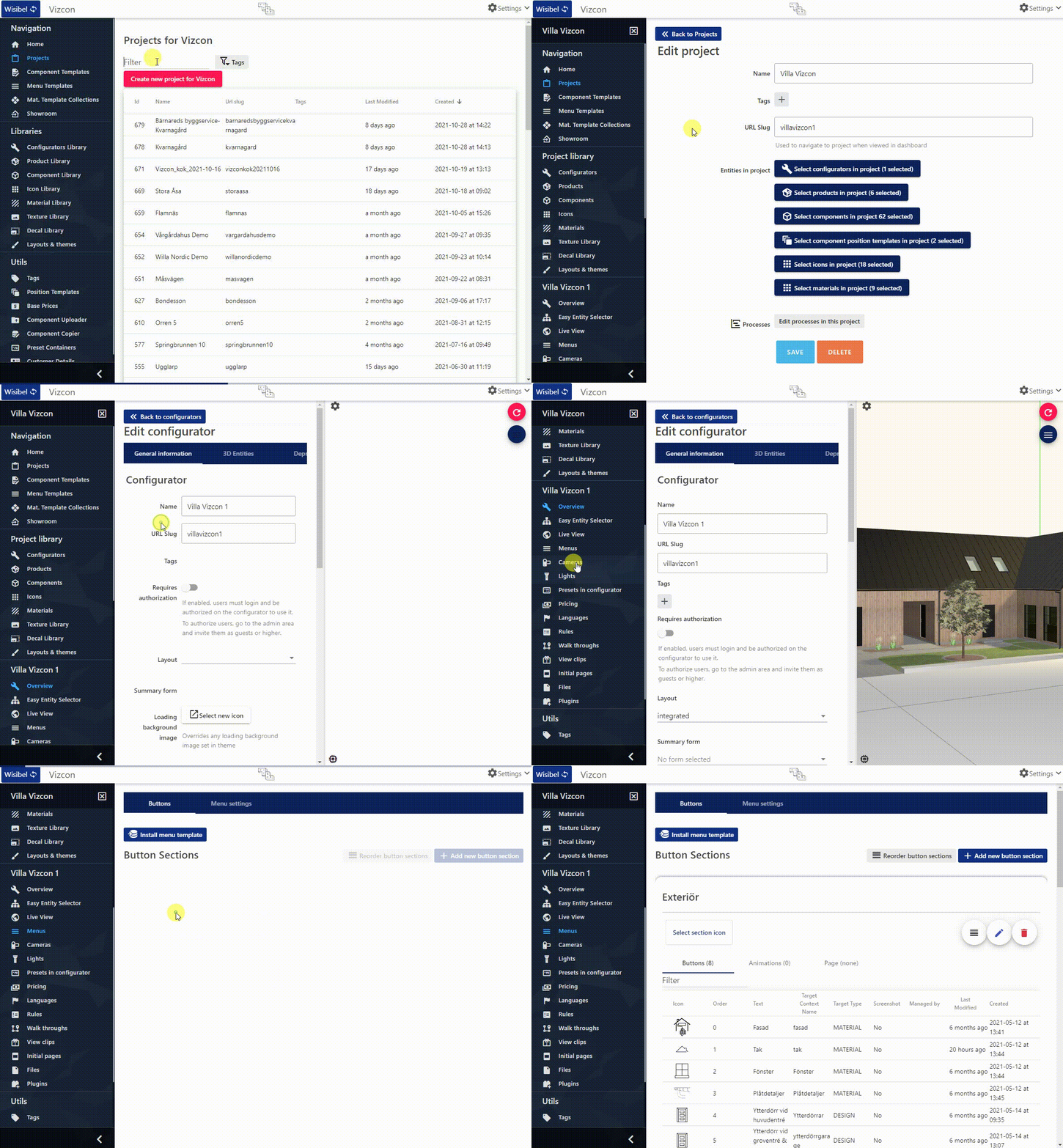
If there's no menu available in the list, create one by clicking Create new menu. The menu that's Active is loaded by default.
¶ Button sections
The menu contains Button sections, which in turn contains Menu buttons.
Click on Add new button section to create, and Reorder button sections to change the display order.
¶ Text and icon
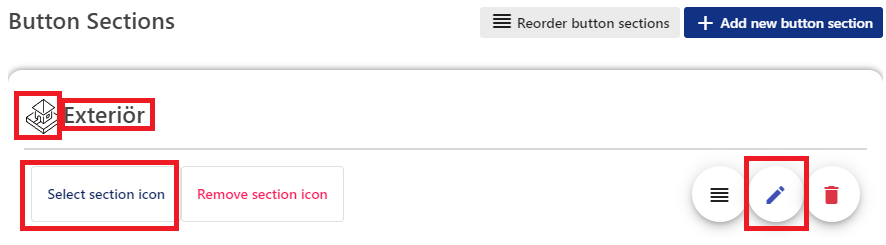
A Button section's text and icon is displayed differently depending on the used Layout; for example the Integrated layout only displays the text, while the Easy layout only uses the icon.
Click on the icon or text to edit:
¶ Animations
Button section animations are played when any of their menu buttons are clicked.
¶ Menu buttons
Menu buttons are primarily used to display options for a specific category. Options refers to either designs or design materials, such as exterior doors or color of the roof. They often have animations to make the option selection experience better by moving the camera and zooming in on the 3D-model.
¶ Text and icon
An input field will be displayed for every enabled language within the Configurator. Wisibel does not automatically translate any text.
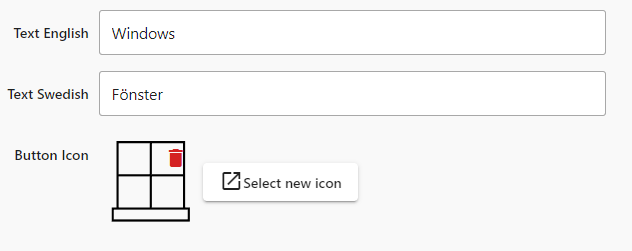
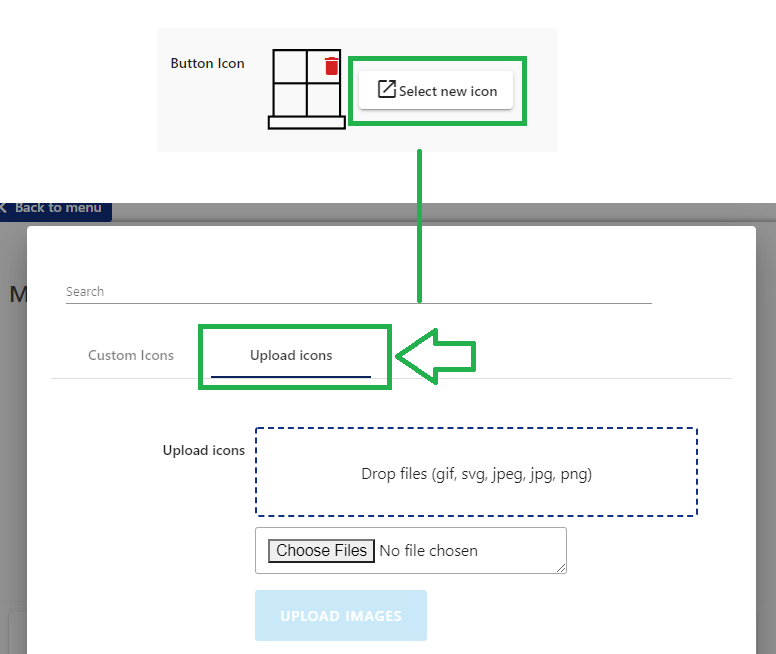
From the Select new icon-button, icons can be uploded by using the last tab:
¶ Context name targeting
Finds Options (design or design materials) based on their context name, and displays them in the option menu when active.
-
Target Context Name - if enabled, attempts to find options. Disable if the button has another function, such as displaying files.
-
Targeting Context Types
- Design - finds the designs in the component with matching context name
- Material - finds the materials in the currently loaded design in the component with matching context name
- Context page - finds the context page assigned to the currently loaded design in the component with matching context name.
-
Hide when context name not found - hides the menu button if options cannot be found for the given context name. Useful for sub components that are made available by selecting another choice.
¶ Animations
Menu buttons inherit animations from their parent button section, but can be overriden by the menu button.
¶ Detailed view page
The detailed view page is displayed in the Detailed view window, and in some layouts above the options, like so:
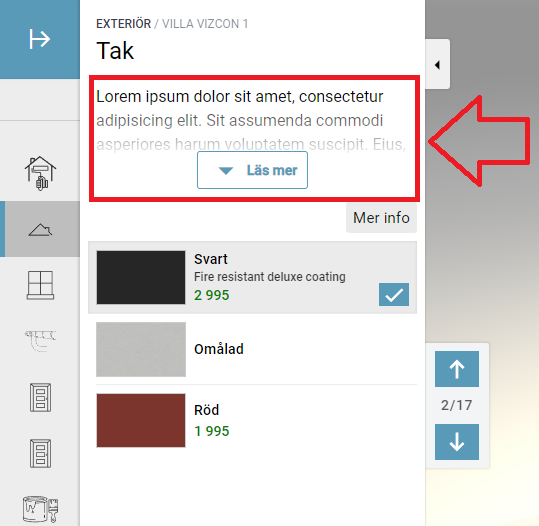
Set the page by this control inside a menu button
 .
.
Read more about pages.