Markup Templates determines the layout of emails and PDF documents when the user finishes a configuration. They can be translated to match the selected language from the configurator and can contain images and fonts. Some types can also be used inside configurators, and are assigned when editing a Layout.
Markup Templates are managed in the Content Editor at https://content.wisibel.com
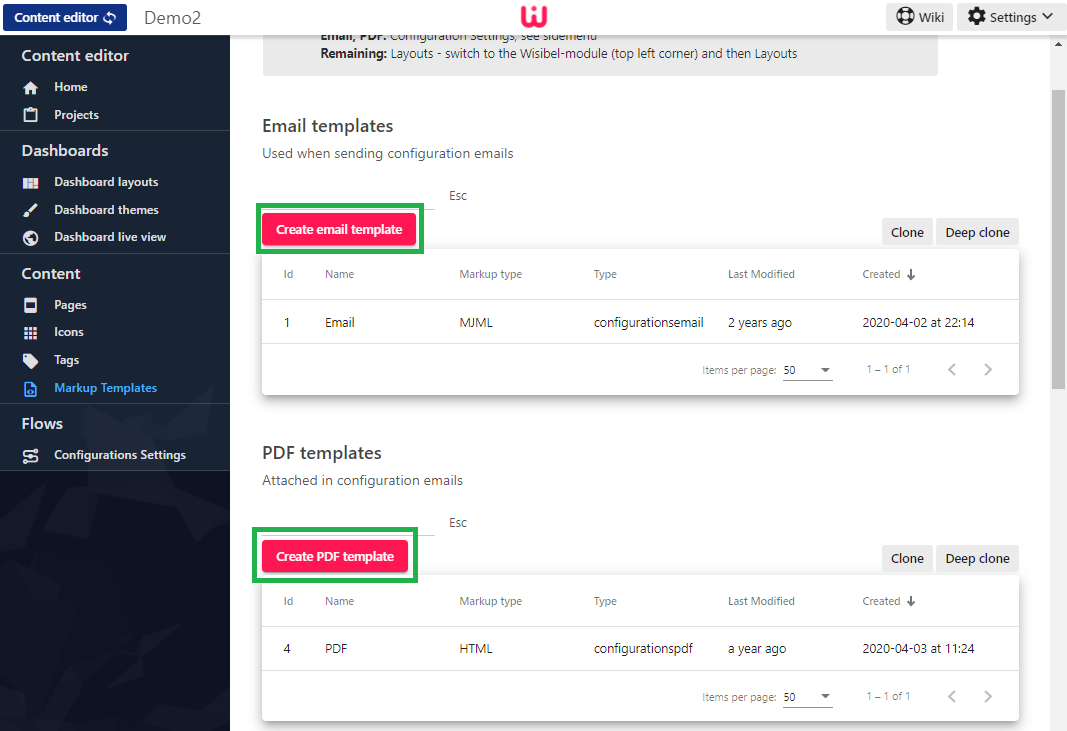
¶ Creating Markup Templates
Each Markup Template must be created within their category. For example, Email markup templates cannot be used for generating PDF documents, and vice versa.
¶ Editing Markup Templates
We'll setup Markup Templates for you as a part of the initial setup.
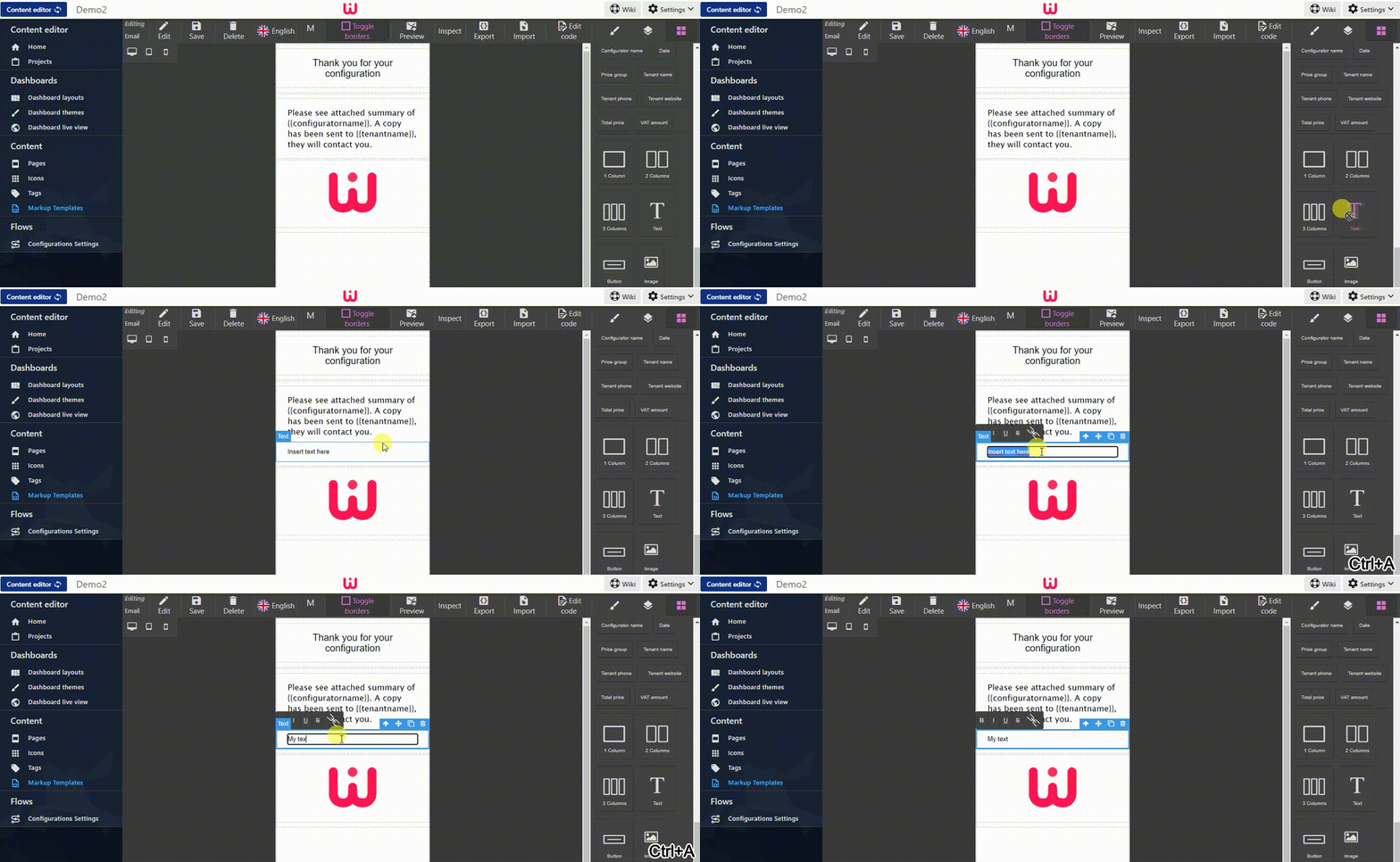
Markup Templates are built by using block elements, which can be found in the right menu. Use them by drag and drop to the editing area:
When editing Email templates, elements can only be dropped onto Columns.
¶ Placeholders
Some templates allows placeholders that will be populated when used, such as {{configuratorname}} and {{date}}. The placeholders can be found in the block elements (see image above). Test placeholders by using the Preview button.
¶ Repeating placeholders
Some placeholders are repeating elements, such as the user fields or the screenshots. They are distinguished by a star* in their names.
Technically, they are placed inside an element with a class name that ends with _each, such as screenshot_each. Default usages are available in the block elements menu, such as Form values*.
¶ Styling elements
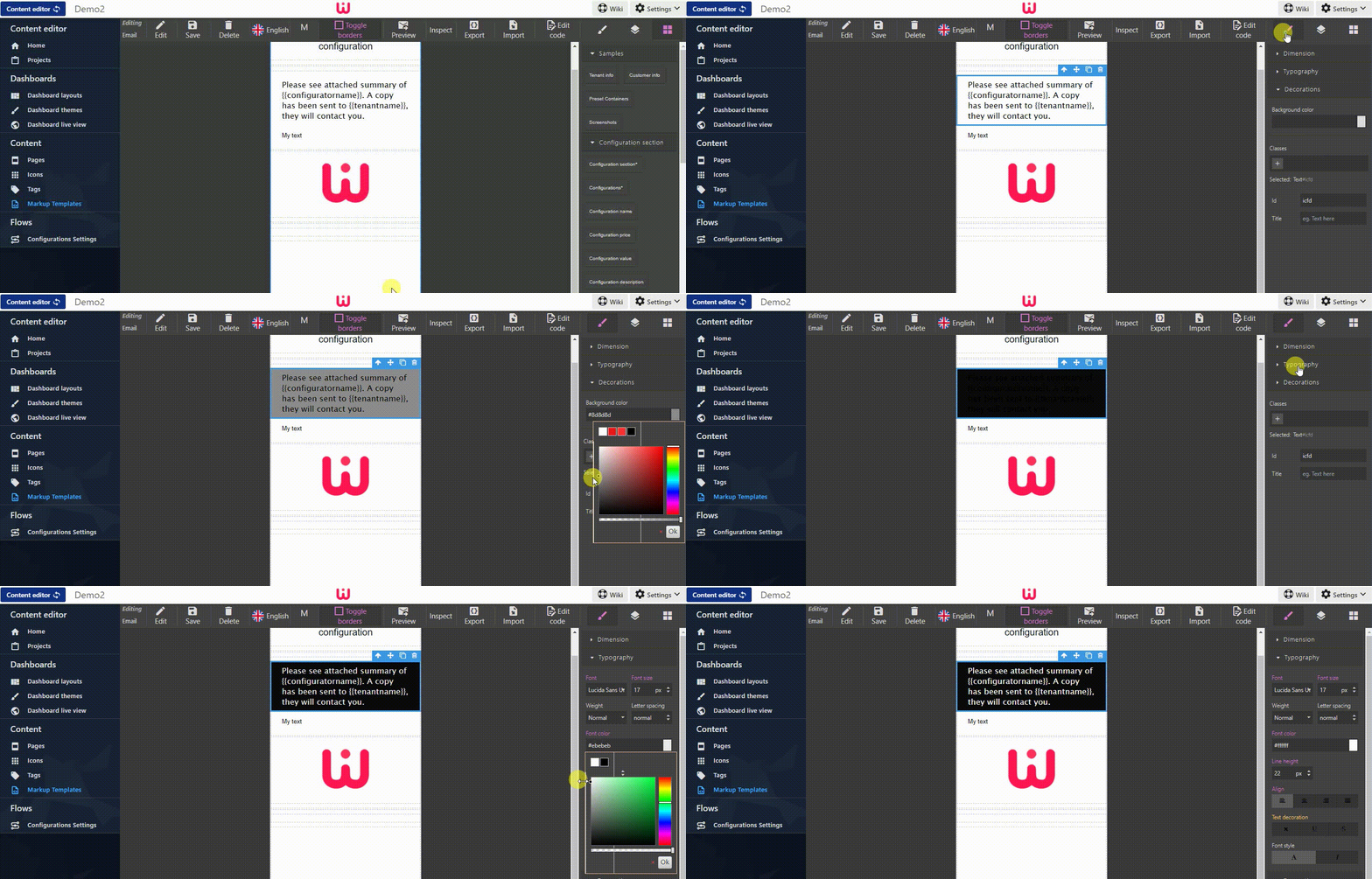
Elements can be styled by using the Styles-tab:
¶ Adding images
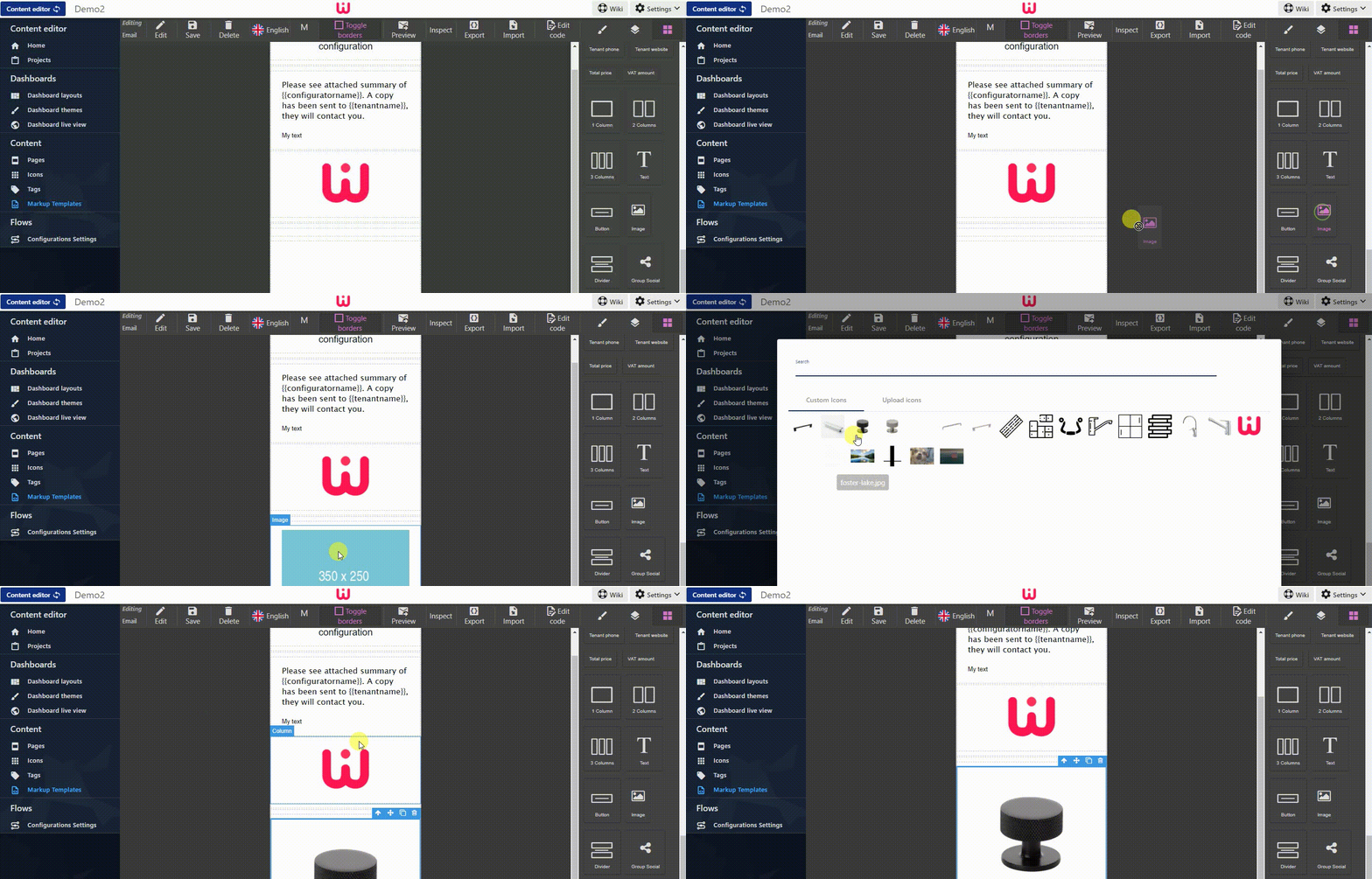
Drop the Image element onto the editing area, and double click on the picture to change the image:
SVG images are not supported in many email clients, use other formats like jpeg and png instead.
¶ Testing different screen sizes
Some templates allows the styling to be applied on certain break points. Use the device icons to change the editor size:

¶ Previewing
Emails and PDFs can be previewed by using the Preview button. They will be generated with an example configuration that will populate any placeholder fields.
¶ Adding translations
By default, the English translation is always used unless a translation can be matched with the user's language from the configurator. Click on the language menu to change the current editing language.
Languages are managed in the Admin area at https://admin.wisibel.com
¶ Copying a translation
For easier editing, a translation can be copied by doing the following:
- From the source/default translation, click Export and copy the text
- Change to the desired language by clicking the language menu
- Once inside the new language, click Import and paste the text
- Click OK
Beware - the import will replace all existing markup in the new language.

¶ Changing email subject
The email subject can be edited by clicking on Edit. It may contain placeholders that will be populated when sent, such as [MyCompany] Configuration summary - #{{configurationid}}.
¶ Assigning Markup Templates
A Markup template is not used until it is referenced somewhere.
- Email and PDFs are assigned in a Configurations Setting, read more here
- The remaining are assigned in a Layout.